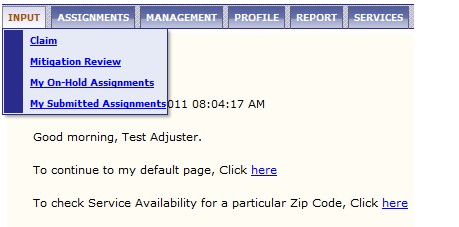
Assigning a Claim.
1. To assign a claim, click on the input menu and select the type of assignment: either Claim (for normal DRP, Mitigation, Ladder Assist, and Estimate Only) OR Mitigation Review (for an FNI review of a claim).
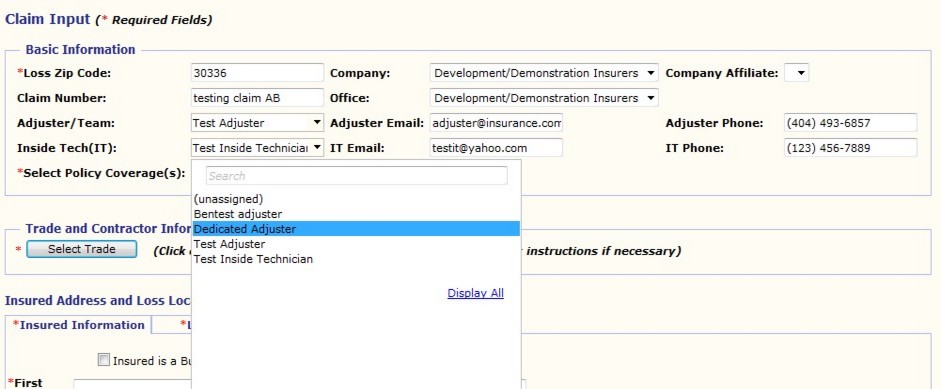
2. Under the Basic Information enter the claim information. The Adjuster/Team and Inside Tech have drop-down lists available to quickly select the correct person.
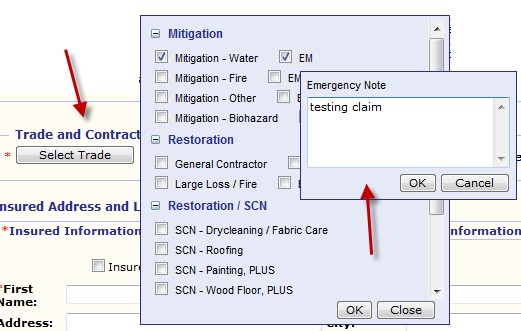
3. Click on Select Trade. A list of available trades will pop up. If the trade is listed in BLACK, there is an Alacrity vendor currently servicing that area. If the trade is listed in RED, there is no Alacrity vendor currently servicing this area. Multiple trades can be assigned at the same time.
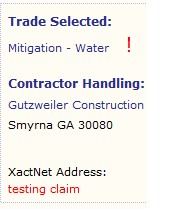
4. Once the trade is selected the system will assign the next contractor in rotation.
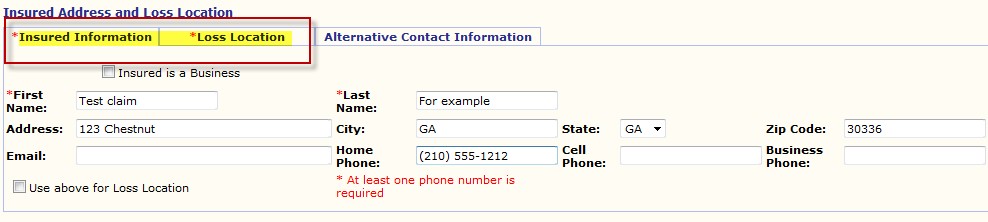

5. Input the Insured Address and Loss Location. Note anything marked with a red asterisk is a required field. Also note the Loss Location tab at the top, make sure the correct information is entered.
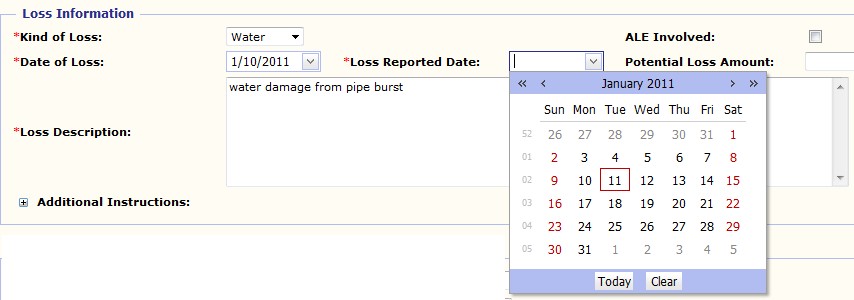
6. Enter the Loss Information. Convenient drop-down calendars are available for date input.
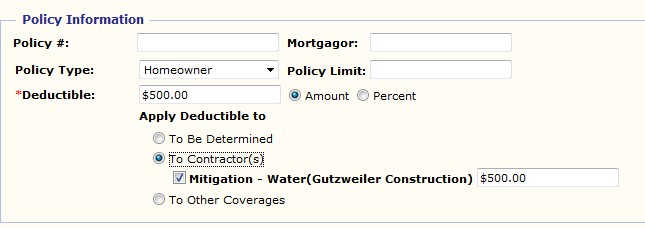
7. Enter the Policy Information. Under the deductible field, enter the applicable deductible. AlacNet2 will allow you to split the deductible between multiple contractors if desired.

8. If everything is correct, click Submit to send the assignement to an Alacrity vendor. If there is no coverage or the rotation needs to be altered, you can select the 'Route' feature.